Control Center:Theme,wallpaper
- 4.8
- Rating
- 10.00M
- Installs
- Free
- Price
 Analysis by App-foxy
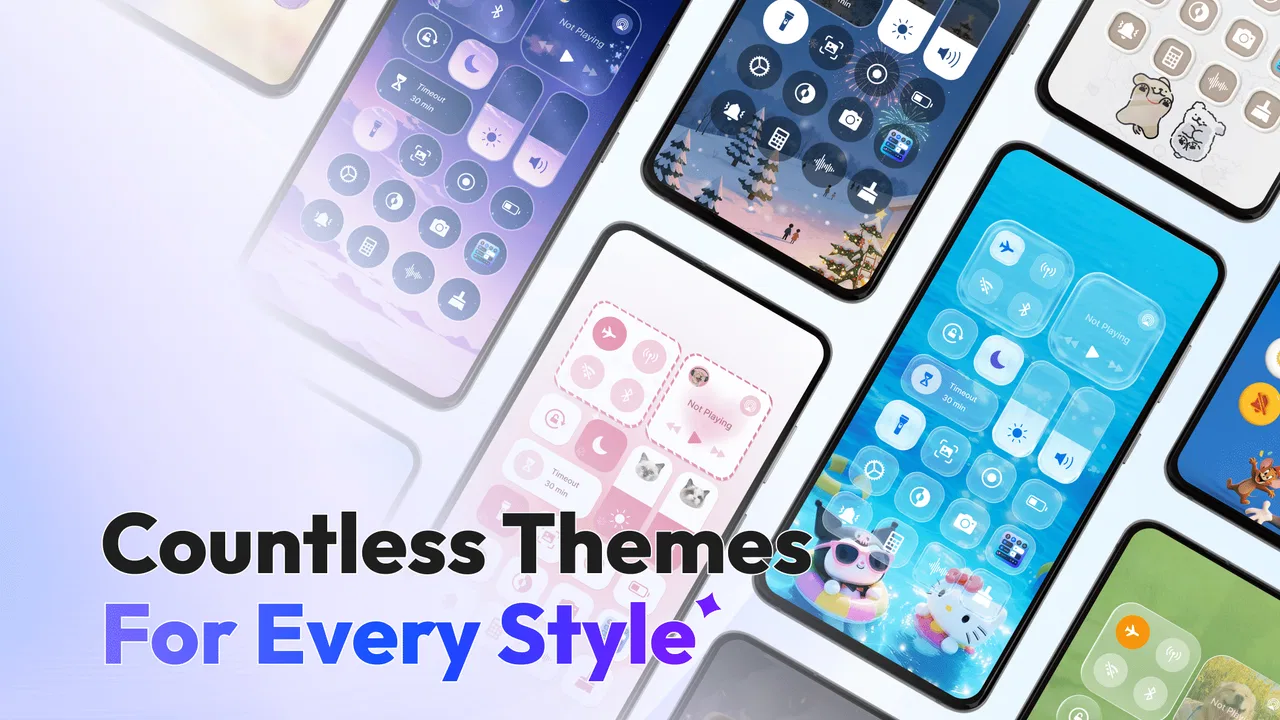
I like the idea behind Control Center - Stable & Easy because it targets a familiar Android annoyance: reaching everyday controls often takes more taps than it should. Instead of treating the app as a full replacement for every system function, I see it as a customizable access panel for the things I use repeatedly, including apps, music, network controls, and other shortcuts available through its control panel.
That distinction matters. This is a personalization app from AceTools Team, not a general phone-cleaning tool or an all-purpose performance booster. Its value depends on whether a quicker panel fits the way you already use your phone. I found it most appealing for people who want a consistent gesture or on-screen entry point rather than repeatedly searching through the home screen, notification shade, or settings.
The app is free to install and is rated for Everyone, which makes it easy to try without committing money first. Optional in-app purchases range from $9.99 to $29.99 per item, so I would explore the free experience carefully before deciding whether any paid option is worthwhile. Its current version is 1.2.3, and it runs on Android 6.0 or later.
You May Also Like

 Blood Strike: 2.5 Anniversary
Blood Strike’s Loadouts Turn Every Drop Into a Tactical Gamble
A close look at Blood Strike’s custom loadouts: how fast access to signature weapons reshapes its battle royale rhythm, rewards preparation, and narrows the gap between fights.

 Pandora - Music & Podcasts
Pandora’s Music Is Easy to Start, but Harder to Recover
Pandora’s strength is its low-effort path from a seed to a station. Its weak spot is how much confidence it asks you to place in connection, setup, and quiet recovery.

 8 Ball Pool
 Is Built on Rivalries, Rematches, and Routine
A close look at the rivalries, rematches, shared routines, and unanswered safety questions that turn a quick pool match into a persistent mobile community.

 Samsung Music
’s Quiet Strength Is Playing What You Already Own
Its reach comes less from spectacle than from dependable access to a personal library. That simplicity is both the app’s strongest retention engine and its ceiling.

 AccuWeather: Weather Radar
AccuWeather Review: A Quick, Clear Forecast for Everyday Decisions
For everyday plans, the best forecast is the one you can understand quickly. AccuWeather makes rain timing, radar, and local conditions easy to act on, with a few trade-offs.

 Hill Climb Racing
Why Hill Climb Racing Still Turns Crashes Into One More Run
A tiny car, a bumpy hill and one more upgrade: Hill Climb Racing keeps resurfacing because its simple chaos makes every near-miss feel personal.
More From Our News Desk



Where the first setup usually becomes confusing
The biggest friction is not the basic idea; it is understanding how the panel fits around Android’s own controls. A phone may already have a system quick-settings area, navigation gestures, notification controls, and manufacturer-specific shortcuts. Adding another control layer can feel excellent once the access method becomes familiar, but awkward during the first few minutes.
I would begin with a small set of actions rather than trying to arrange everything at once. Put the controls you genuinely use several times a day in the easiest positions, then leave less important shortcuts for later. This makes it much easier to tell whether the panel is saving time or merely adding another place to look.
A realistic example is commuting. I might open a music app, change a network setting, and return to the current screen while carrying a bag or using the phone with one hand. A dedicated control panel can reduce the need to jump back to the home screen for each task. However, if I only change those settings once a week, the extra layer may not justify the adjustment period.
Another common stumbling block is expecting a visual panel to behave exactly like the phone’s built-in interface. Android manufacturers do not all arrange system controls in the same way, and the experience can vary with the device. I treat this app as an additional access surface, not as a promise that every system control will work identically on every handset.
My first practical tip is to test the panel while the phone is unlocked and idle. That separates a layout or access problem from an issue caused by another screen, an active media session, or a temporary system state. It also lets you learn the opening motion without rushing to use it during a real task.
Checks that make the panel easier to live with
After installing, I would check the arrangement before judging the app. Remove shortcuts that you never touch, group related actions mentally, and keep the most important controls where your thumb naturally reaches them. A panel filled with every possible option may look flexible, but it can be slower than a short, deliberate layout.
I would also compare it with the phone’s existing quick settings. If Android already gives you a convenient control for a particular action, there is little benefit in duplicating it unless the app places that action in a more useful location. The strongest setup is usually complementary: use the system shade for controls that are already easy to reach, and reserve this panel for shortcuts that otherwise require navigating through several screens.
Music is a good test because it exposes workflow quality quickly. Start playback, move to another app, and try opening the panel without losing your place. If the controls help you pause or resume without unnecessary navigation, that is a meaningful advantage. If you find yourself opening two different panels to perform one simple action, the arrangement needs simplifying.
Network controls are another useful test, especially when moving between home, work, and public connections. I would not use the panel as proof that a connection itself is healthy. It can provide a faster route to a control, but it cannot fix weak coverage, an overloaded router, or a service outage. That distinction prevents a lot of wasted troubleshooting.
The app’s broad compatibility is helpful for older phones because Android 6.0 is a relatively accessible minimum. Still, compatibility does not guarantee an identical experience across devices. Manufacturer software can affect the way overlays, gestures, system panels, and background behavior feel. If the panel seems inconsistent, I would first check whether the same action works normally through Android’s own interface.
Recovering when a shortcut stops helping
When a control does not respond as expected, I avoid changing several things at once. First, I close and reopen the panel, then try the same action from the normal Android route. This tells me whether the problem belongs to the shortcut path or to the underlying phone function.
If the ordinary route works, I would simplify the panel and recreate the shortcut rather than immediately assuming the whole app is broken. A crowded or recently changed arrangement can make it difficult to identify which item is causing confusion. Testing one control at a time is slower for a minute but much faster than repeatedly rebuilding the entire setup.
Music deserves a separate recovery approach. If playback has stopped, I check the music app itself before blaming the control panel. The player may have paused because of its own state, the audio output may have changed, or another app may have taken control. The panel can offer a convenient command, but it does not replace the music app’s playback logic.
The same principle applies to network shortcuts. If tapping a network control appears to do nothing, I check whether the phone’s system setting changed, whether the connection is available, and whether the device is showing a delayed status update. A shortcut can make an action easier to reach without making Android’s response instantaneous.
A useful recovery habit is to keep one familiar system route available. I would not remove every alternative while learning the app. Having the normal Android quick settings or Settings screen as a reference makes it possible to compare results and prevents a minor panel issue from becoming a larger access problem.
When Android or another app is actually responsible
It is easy to blame a control panel when the real cause is elsewhere. A phone that feels slow may be busy with another process. A network action may appear ineffective because the connection itself is unstable. A music command may fail because the player is paused, closed, or using a different output. In each case, the panel may simply be the place where I noticed the problem.
I would therefore test the underlying action directly. Open the relevant system area or app, perform the same task, and observe whether the result changes. If it fails there too, reinstalling or rearranging the panel is unlikely to help. This simple comparison is more useful than repeatedly tapping a shortcut and guessing.
Screen layout can also create misleading behavior. If the panel opens near an edge or over another control, a tap may land differently from what I intended. I would slow down, try a different position, and reduce the number of nearby items. A cleaner layout often solves what feels like an unreliable command.
There is also a trade-off between convenience and visual consistency. The app adds its own way of reaching controls, while the phone’s native interface remains available. Some users will appreciate having a personal control surface; others will feel that two systems are competing for attention. If you prefer the smallest possible software footprint and already like your manufacturer’s quick settings, this app may not be the right choice.
The same is true for people who want deep automation. A control panel is useful for quick access, but it is not automatically a replacement for a dedicated automation app, a launcher with extensive customization, or the phone maker’s built-in tools. I would choose this app when the main goal is quicker manual access, not complex routines that run on their own.
How it fits into everyday Android use
In daily use, the best workflow is deliberately modest. I would open the panel for a small number of repeated actions, then return to the app I was using. That keeps the feature in the background where it belongs. If I have to manage the panel more often than I use it, the setup has become counterproductive.
For someone who frequently switches between apps, the shortcut area can be more valuable than a decorative customization feature. I can imagine using it to reach a messaging app, a music player, or a network control without interrupting the current task as much. The benefit is not dramatic in one isolated tap; it comes from removing small interruptions throughout the day.
For a less frequent phone user, the calculation is different. If you mainly make calls, read messages, and use one or two familiar apps, the normal home screen may already be enough. Adding a panel introduces another interaction to remember. I would recommend trying the free version only if you can name several actions you want to reach more often.
The app’s popularity suggests that the concept has broad appeal: it has a 4.8 average from around 157 thousand ratings and more than 5 million installs. Those figures make it easier to see why people are interested, but they do not decide whether the layout suits your phone. Personalization tools are especially dependent on habits, screen size, Android skin, and tolerance for an extra layer.
I also pay attention to cost because the free starting point changes the decision. Since paid items can cost from $9.99 to $29.99 each, I would avoid purchasing anything until I had used the panel long enough to know that it solves a daily problem. A feature that saves a few seconds occasionally may not justify a purchase, while a shortcut used constantly could be more valuable to the right person.
The age rating of Everyone is reassuring for households looking for a straightforward personalization tool, but it should not be confused with a guarantee that every device will feel identical. The Android version requirement is friendly to many older phones, while the actual experience still depends on the device’s software and the way it handles system controls.
Small decisions that improve the experience
One non-obvious choice is to design the panel around situations rather than app categories. Instead of placing every entertainment shortcut together, I might prioritize a “leaving home” group in my memory: music, a network control, and the apps I use while traveling. This makes the panel useful as part of a routine rather than as a miniature app drawer.
A second is to judge shortcuts by interruption avoided, not by how often they are opened. A control used only a few times can still deserve a prominent place if reaching it normally breaks concentration. Conversely, an app opened often may not belong in the panel if it is already visible in the dock or recent-apps view.
A third is to keep the first layout stable for a while. Constantly moving controls makes it harder to build muscle memory and can create the impression that access is unpredictable. I would make one thoughtful arrangement, use it through several ordinary tasks, and only then adjust the items that genuinely caused hesitation.
A fourth is to use the native route as a diagnostic reference, not as a rival. When something feels wrong, compare the result with Android’s own control. This helps identify whether the app’s shortcut, the phone’s system behavior, or another application is responsible. It is a simple habit, but it makes troubleshooting much less frustrating.
Who should install it, and who should pass
I would recommend Control Center - Stable & Easy to people who repeatedly reach for the same apps, music controls, or network settings and want those actions gathered in one additional place. It is particularly sensible for users whose home screen is busy or whose usual shortcuts are awkward to reach one-handed.
I would be more cautious if your phone already has an excellent quick-settings experience and you rarely change it. In that situation, the app may feel like duplication rather than improvement. I would also skip it if your priority is advanced automation, extensive system modification, or a completely minimal interface.
Because the developer is AceTools Team and the app has a current version of 1.2.3, I would begin with a straightforward trial rather than making assumptions from the name alone. Install it, create a compact layout, and test the exact three actions that motivated you to look for a control panel. If those actions become easier without creating new confusion, the app has earned a place on your phone.
My final view is positive but practical. This app works best as a focused convenience layer, not as a cure for every Android control problem. Its free entry, Everyone rating, broad Android 6.0 compatibility, and strong user response make it easy to consider. The real decision comes down to workflow: if a second, personalized access panel removes repeated friction, it can be genuinely useful; if your native controls already feel effortless, keeping the phone simpler is probably the better choice.
FAQs for Control Center:Theme,wallpaper
01What is Control Center - Stable & Easy and how does it work?
Control Center - Stable & Easy is an app designed to streamline your device's accessibility. It provides a customizable panel where you can quickly access essential settings and apps. By swiping and tapping, you can control Wi-Fi, Bluetooth, screen brightness, and more. It's a user-friendly solution for enhancing productivity and efficiency on your mobile device.
02Is Control Center - Stable & Easy compatible with all Android and iOS devices?
While Control Center - Stable & Easy aims to be compatible with most devices, it's essential to check the app store listing for specific requirements. Compatibility may vary based on your device's operating system version. Ensure your device meets the specified OS version to enjoy a seamless experience.
03Does Control Center - Stable & Easy offer customization options?
Yes, the app offers a range of customization options. Users can modify the layout, icons, and shortcuts to suit their preferences. This flexibility allows you to tailor the control panel according to your needs, ensuring that the most frequently used functions are easily accessible.
04How does Control Center - Stable & Easy ensure user privacy and data security?
The app prioritizes user privacy by not requiring unnecessary permissions. Control Center - Stable & Easy is designed to operate locally on your device, ensuring that your data isn't stored or shared outside the app. Always review the app's privacy policy for detailed information on data handling.
05Are there any in-app purchases or ads in Control Center - Stable & Easy?
Control Center - Stable & Easy may include in-app purchases to unlock premium features or remove ads. The free version typically offers basic functionality, while the premium version enhances the user experience. Check the app store description for detailed information on pricing and features included in each version.
Pros
- User-friendly interface simplifies navigation.
- Customizable to suit personal preferences.
- Quick access to essential functions.
- Stable performance with minimal crashes.
- Enhances productivity with easy shortcuts.
Cons
- Occasional ads can disrupt usage.
- Limited customization for advanced users.
- Might drain battery faster over time.
- Some features require in-app purchases.
- Compatibility issues with older devices.

Control Center:Theme,wallpaper
Gallery